
Towner Zoom Phone Training: Videos, Guides & Quick Tips
Towner Communications step-by-step Zoom Phone tutorials and training guides to help you master your desk phone, desktop app, and mobile app. Learn how to set up your account, make and manage calls, check voicemail, send messages, and use advanced features like call flip, call park, and online faxing. Everything you need to keep your business communications running smoothly—on any device.

Which Zoom Phone Training Are You Looking For?
Desk Phone, Desktop App, Mobile App, or Faxing?
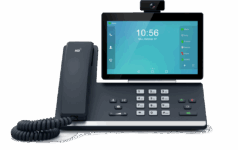
Desk Phone Training:
Step-by-step Zoom Phone desk phone tutorials for making and receiving calls, call transfers, voicemail setup, and advanced features using Yealink T4x/T5x phones.
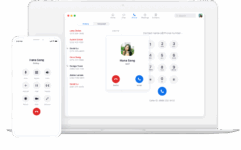
Desktop App Training:
Learn how to use the Zoom Phone desktop app with guides on calls, voicemail, SMS messaging, call flip, and managing contacts for streamlined business communication.

Mobile App Training:
Zoom Phone mobile app training for making calls, sending texts, checking voicemail, and flipping calls between mobile, desk phone, and desktop devices.
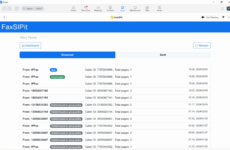
Zoom Fax Training:
Guides for sending and receiving online faxes in Zoom Phone using the desktop and mobile apps, including inbox management and secure file handling.
Towner’s Training for Zoom Desk Phone
Master your Zoom Phone desk phone with our Yealink T4/T5 quick start guide, in-depth user manual, and step-by-step training videos. Learn how to make and receive calls, transfer calls, check voicemail, park calls, and use advanced features like call flip—all designed to help you communicate faster and more effectively.
Yealink Zoom Phone Setup and Key Features – VP59, MP58, MP56, MP54
Quick Tips & Troubleshooting for Yealink Zoom Phone Desk Phones
Quick Tips:
-
Always dial the full number with area code.
-
Check headset or handset connections for audio issues.
-
Use Warm Transfer or Blind Transfer depending on your needs.
-
Turn off Do Not Disturb (DND) to receive calls.
-
Press History to see recent calls.
Troubleshooting Steps:
- No audio or one-way audio: Increase volume, try speakerphone, or check cables.
- Voicemail button not working: Confirm PIN or dial *86 manually.
- Display frozen: Power cycle the phone by unplugging for 10 seconds.
- Shared voicemail confusion: Check Zoom desktop/mobile app to identify inbox.
Zoom Desk Phone FAQ Guide – Setup, Voicemail, Transfers, and Troubleshooting
Zoom Phone Desktop App Training – Videos, Guides & Quick Tips
Learn how to set up, customize, and master the Zoom Phone desktop app with our step-by-step training videos and user guides. Whether you’re making calls, transferring, checking voicemail, sending messages, or flipping calls between your desk phone and computer, this section will walk you through everything you need to know. You’ll also find quick troubleshooting tips for common issues like missing call tabs, audio problems, and voicemail access—so you can stay connected and productive from your computer.
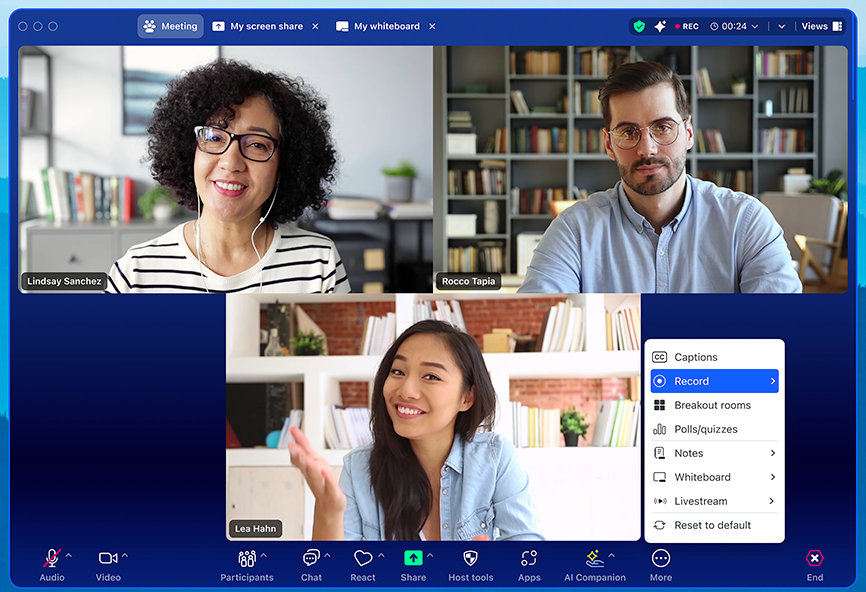
Quick Tips & Troubleshooting for Yealink Zoom Phone Desk Phones
How to Test & Configure Audio Settings in Zoom Phone Desktop App
How to Configure Call Handling in Zoom Phone Desktop App
Zoom Phone Desktop App Overview: Interface & Key Features
How to Transfer Calls Using Zoom Phone (Desktop App Tutorial)
Zoom Phone Desktop App Quick Tips & Troubleshooting
Quick Tips:
- Pin the Phone tab for faster access in the Zoom desktop app.
- Use search in the Contacts panel to quickly find internal extensions or saved contacts.
- Drag and drop numbers into the Phone tab to start a call instantly.
- Right-click a number in Call History to redial or send an SMS.
- Check your call quality using Settings → Statistics before important calls.
Troubleshooting Steps:
-
Phone tab missing: Sign out of the Zoom desktop app and sign back in; confirm your Zoom Phone license is active.
-
No audio during calls: Check mic/speaker settings under Settings → Audio; test using “Test Mic” and “Test Speaker” buttons.
-
App not ringing: Make sure Do Not Disturb is off and your business hours are correctly set in the Zoom web portal.
-
Can’t send SMS: SMS must be enabled by your admin—contact support if the option is missing.
-
Voicemail not accessible: Log into the web portal to confirm voicemail PIN and greeting settings.
Zoom Phone Desktop App FAQ Guide – Setup, Features, and Troubleshooting
Zoom Phone Mobile App Training – Videos, Guides & Quick Tips

Stay connected on the go with the Zoom Phone mobile app. In this section, you’ll learn how to install the app, make and receive calls, send and receive SMS/MMS, check voicemail, and use features like call flip, call park, and contact search from your smartphone or tablet. Our training videos, quick guides, and troubleshooting tips will help you get the most out of Zoom Phone — anytime, anywhere.
Download, Install & Update Zoom Mobile App for Zoom Phone
Zoom Phone Mobile App Interface Overview – Navigation & Key Features
How to Send a Zoom Meeting Invite via SMS in Zoom Phone Mobile App
Zoom Phone Mobile App Quick Tips & Troubleshooting
Get the most out of your Zoom Phone mobile app with these quick fixes, time-saving shortcuts, and must-know tips. Whether you’re making calls, joining video meetings, or sending SMS, these simple solutions will help you stay connected without frustration.
Quick Tips:
- Enable Wi-Fi Calling: Improves call quality in low-signal areas.
- Update Your App: Always run the latest version for bug fixes and new features.
- Use Do Not Disturb (DND): Prevents interruptions during meetings or calls.
- Switch Between Devices: Seamlessly transfer a call from your mobile app to your desktop Zoom client.
- Customize Voicemail Greeting: Personalize messages directly from the app settings.
Troubleshooting Steps:
-
No Audio or Dropped Calls: Check internet connection, switch to Wi-Fi, or toggle airplane mode on/off.
-
App Crashing: Close background apps, restart your phone, and update Zoom.
-
Can’t Hear Caller: Ensure volume is turned up and Bluetooth devices aren’t interfering.
-
Login Issues: Clear app cache or reset your password through Zoom’s website.
Zoom Phone Mobile App: Quick Tips & Troubleshooting FAQs
Zoom Phone Faxing – Guides & Quick Tips
Send and receive faxes directly through Zoom Phone without a traditional fax machine. This section covers everything from sending your first fax to troubleshooting common issues. Whether you’re using Zoom’s web portal or the desktop app, these resources will help you fax confidently and securely.

How to Send and Receive Faxes in Zoom Phone Using FaxSIPit
Zoom Phone Faxing: Quick Tips & Troubleshooting
Quick Tips:
-
Save frequent numbers: Store your most-used fax recipients as contacts in Zoom Phone for faster sending.
-
Use PDF format: PDFs are the most reliable file type for fax compatibility and quality.
-
Double-check the number: Always include the area code, and for international faxes, add the country code.
-
Compress large files: If your document is close to the maximum size limit, compress it before sending to avoid errors.
-
Keep records: Use the Fax History tab to track sent and received faxes for documentation purposes.
Troubleshooting Steps:
-
Fax failed to send: Verify the recipient’s fax number, confirm the file format is supported, and ensure the file size is under 20 MB.
-
Can’t receive faxes: Make sure your Zoom Phone account has faxing enabled and that your assigned fax number is correct.
-
Poor image quality: Use high-resolution scans and save as PDF before sending.
-
International fax issues: Confirm your plan supports international calling and that you’re dialing the full country code.
-
Missing fax in history: Refresh the Zoom Phone web portal or app, or check if it was sent to a shared company fax line instead of your personal number.
Zoom Phone Faxing FAQs – How to Send, Receive & Fix Common Issues
Need More Help With Your Zoom Phone System?
Send and receive faxes directly through Zoom Phone without a traditional fax machine. This section covers everything from sending your first fax to troubleshooting common issues. Whether you’re using Zoom’s web portal or the desktop app, these resources will help you fax confidently and securely.
If you still have questions or need personalized help, our Towner Communications support team is here for you.
Submit a Support Ticket
Through our customer portal
Call Us
for immediate assistance
Email Us
with your questions